
August 4, 2026 · Famolandia Team
How to Rotate a PDF and Save It Permanently
Learn why some PDF rotations disappear, how to save page orientation permanently, and how to correct one page, several pages, or an entire PDF locally in your browser.
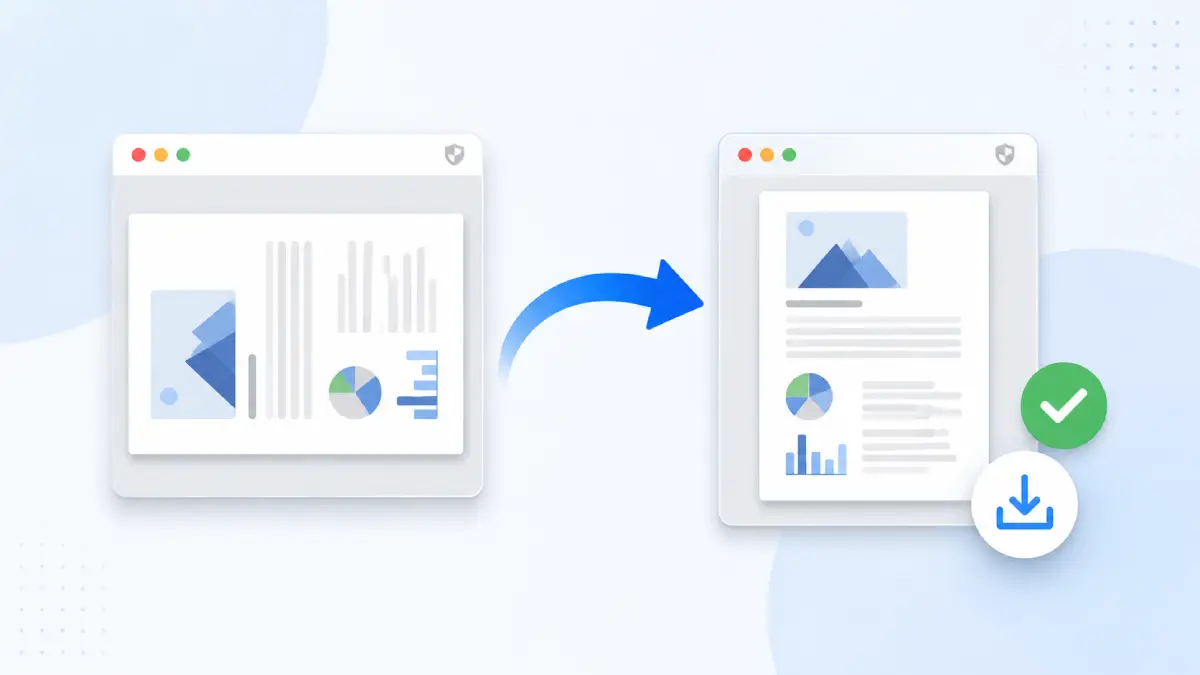
Some PDF programs rotate only the way a document appears on your screen. That change may disappear when you close the file, reopen it, or send it to someone else. To Rotate a PDF and Save It Permanently, you must rotate the PDF pages themselves and then download a new copy with the corrected orientation.
You can use Famolandia’s Rotate PDF tool to correct sideways or upside-down pages directly in your browser.
Why Does a Rotated PDF Return to Its Original Orientation?
A PDF can look correct in one viewer while still containing pages with the wrong saved orientation. This usually happens because the viewer changed the display, not the document.
Your PDF Viewer May Be Rotating the View Only
A PDF reader’s rotation button may act like turning your screen. It makes the page easier to read but may not create an edited file.
When the document is reopened in another app, browser, or device, the original orientation can return. The same problem can appear after sharing the file because the recipient receives the unchanged PDF rather than your temporary viewing preference.
Rotating the View vs. Rotating the PDF Pages
| Rotate View | Rotate PDF Pages |
|---|---|
| Changes how the current viewer displays the page | Saves the selected orientation in a new PDF |
| May disappear after closing the file | Remains after reopening the downloaded copy |
| May look different on another device | Travels with the corrected file |
| Does not necessarily edit the PDF | Produces an updated PDF for saving and sharing |
“Permanent” does not mean the document can never be edited again. It means the corrected orientation is stored in the downloaded PDF instead of being applied only on screen.
How to Rotate a PDF and Save It Permanently
Step 1 – Open the Rotate PDF Tool
Open the Rotate PDF tool and choose the document you want to correct.
You do not need to convert the PDF into images or recreate it in another format.
Step 2 – Select the Page or Pages
Identify whether the problem affects:
- one page;
- several selected pages;
- the entire document.
Select only pages that need the same correction. If different pages require different directions, apply the appropriate rotation to each selected page or group of pages.
Step 3 – Choose the Correct Rotation
Use:
- 90 degrees clockwise for a page turned left;
- 90 degrees counterclockwise for a page turned right;
- 180 degrees for an upside-down page.
Rotation changes the orientation of the entire page. It does not rotate one photograph, chart, signature, or other object inside that page.
Step 4 – Apply the Rotation and Download the New PDF
Apply the changes and download the updated PDF.
Seeing the correct orientation in a preview is not enough. The downloaded copy is the file you should keep, reopen, and share. Retain the original until you confirm that the corrected version is right.
Step 5 – Reopen the Downloaded File
Open the downloaded copy and verify that:
- corrected pages remain upright;
- unaffected pages are unchanged;
- the page sequence is still correct;
- the file opens normally in another viewer or browser.
If the PDF appears unchanged, make sure you did not reopen the original file by mistake.
How to Rotate Only One Page in a PDF Permanently
A document may contain one sideways scan while every other page is correct.
Select the Incorrect Page
Choose only the sideways or upside-down page and apply the needed direction. Avoid rotating the whole document unless every page has the same problem.
Check the Selection Before Downloading
Review the page thumbnails or preview. Confirm that only the intended page is selected and that it turns in the correct direction. After downloading, inspect the pages immediately before and after it to ensure they were not changed.
How to Rotate Multiple Pages or the Entire PDF
Rotate Several Selected Pages Together
Select pages that share the same orientation problem, then apply one rotation to the group. This is useful when a batch of scans was placed incorrectly or one section of a document is upside down.
If pages need different directions, select each page or group and apply the appropriate rotation.
Rotate Every Page in the Document
Rotate the full document only when every page needs the same change.
Check for intentional landscape pages first. A page that is wider than it is tall is not automatically incorrect. The goal is readable orientation, not forcing every page into the same shape.
Does Permanent PDF Rotation Affect Quality?
Rotating a PDF page is different from turning it into a screenshot or image. A dedicated rotation tool can correct orientation without requiring you to rebuild the document.
The process is intended to preserve visual quality while changing the direction of selected pages. However, the downloaded file may not have exactly the same file size as the original.
You also do not need to use Print to PDF as the main solution. Printing can change document behavior or remove useful features in some cases. A page-rotation tool is more direct when orientation is the only issue.
How to Rotate a PDF Without Uploading It
Browser-Based Processing Explained
With Famolandia, the file is processed locally in your browser. The file does not need to be uploaded to an external processing server.
You choose the PDF, apply the page changes, and download the corrected copy through your browser.
When Local Processing Matters
Local processing can be useful for:
- invoices and receipts;
- school or work documents;
- contracts and forms;
- identification or application files;
- personal records.
It does not remove every possible privacy risk associated with your device, browser, network, or file-handling habits. It does, however, avoid sending the PDF to an external processing server.
Learn More About Client-Side Privacy
Read Why Client-Side File Tools Are Safer for a broader explanation of browser-based file processing.
Rotate, Organize, or Reorder — Which Tool Do You Need?
Use Rotate PDF When Orientation Is Wrong
Use rotation when a page is sideways or upside down. It changes page direction, not page position and not an individual object inside the page.
Use Organize PDF for Broader Page Management
Use Organize PDF when your task involves broader management of a document’s pages rather than orientation alone.
Use Reorder PDF Pages When the Sequence Is Wrong
Use Reorder PDF Pages when pages appear in the wrong order, such as page 4 appearing before page 3 or scanned pages being added in reverse.
Rotation fixes direction. Reordering fixes sequence. Some documents may need both.
Common Mistakes That Make PDF Rotation Seem Unsaved
Reopening the Original File
The corrected orientation is in the newly downloaded copy. Give it a clear name, such as report-rotated.pdf, so you can distinguish it from the original.
Using Rotate View Instead of Rotating Pages
A viewer’s rotation command may solve the immediate reading problem without editing the file. Use a page-rotation tool when the change must remain after reopening or sharing.
Using an Unclear Filename
Nearly identical filenames make it easy to open or send the wrong version. Rename the corrected copy and save it somewhere easy to find.
Expecting Page Rotation to Fix One Image
Page rotation turns the entire page. If the text is upright but one embedded image is sideways, correcting that image requires a different editing task.
Save the Corrected PDF
To save page orientation permanently, rotate the actual PDF pages, download the updated copy, and reopen that copy to verify the result.
Use Famolandia to rotate your PDF pages and save the updated file locally in your browser.
Frequently Asked Questions
Why does my PDF return to the original orientation after I close it?
The program may have rotated only the viewing angle. That setting can disappear after you close the viewer because the PDF pages themselves were not saved with a new orientation. Use a page-rotation tool and download the updated PDF.
What is the difference between Rotate View and Rotate Pages?
Rotate View changes how the current program displays the document. Rotate Pages saves the selected orientation in an updated PDF file, so the change remains when the downloaded copy is reopened or shared.
How can I check that a PDF rotation was saved permanently?
Download the corrected PDF, close the current preview, and reopen the downloaded copy. You can also open it in another browser or PDF viewer. If the pages remain upright, the saved file contains the corrected orientation.
Can I permanently rotate a scanned PDF?
Yes. A scanned PDF can be rotated at the page level in the same way as another PDF. The rotation changes the direction of the complete scanned page, not an individual object within it.
Can I save a rotated PDF without printing it to a new PDF?
Yes. Use a PDF page-rotation tool and download the updated file directly. Printing to PDF is not necessary when page orientation is the only change you need.
Why does my PDF look correct on my device but sideways after I send it?
Your PDF viewer may have stored a local viewing preference that was not written into the file. The recipient opens the original page orientation. Rotate the PDF pages and send the newly downloaded copy instead.